Fuel Worksheet Guide
Introduced in version 6.17, the Fuel Worksheet is a powerful tool designed to streamline pre-flight planning. Because every aircraft is unique, the worksheet is aircraft-specific, allowing for precise weight and balance calculations tailored to your performance data.
Watch the introduction video here.
Getting Started
To create a new worksheet, navigate to the Aircraft section and select your aircraft. From there, you can initialize a new fuel worksheet to begin your planning.
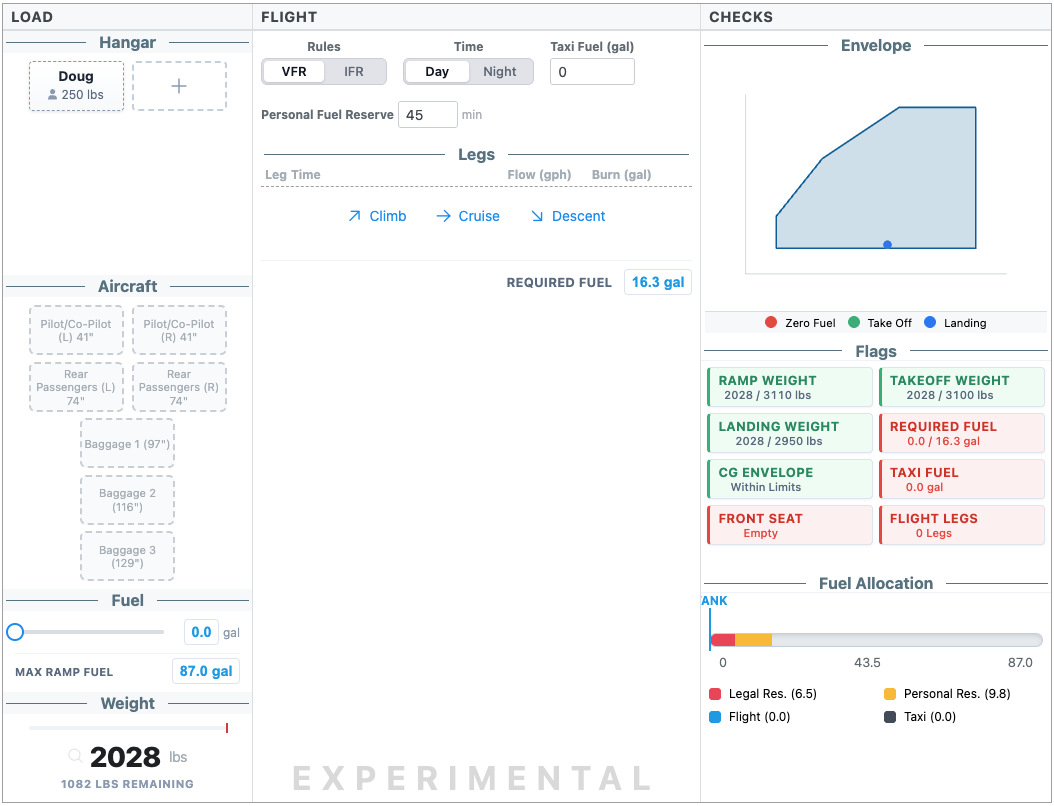
The interface is organized into three primary columns: Load (left), Flight (middle), and Checks (right).
1. Managing the Load
The first step in any flight plan is defining what (and who) is on board.
Adding Passengers and Cargo
In the Hangar section, you can add individuals and items:
- Passengers: Enter names and weights.
- Cargo: Categorize baggage specifically to see visual indicators.
Allocating Stations
As you assign passengers and cargo to specific stations (e.g., Pilot, Front Passenger, Baggage), you will see the total weight increase in real-time.
- Visual Differentiators: The weight bar is color-coded—green represents passengers, and yellow represents cargo. This makes it easy to see your load distribution at a glance.
[!TIP] Use the Max Ramp Fuel button to automatically adjust your fuel load to the maximum allowed ramp weight, ensuring you stay within legal limits while maximizing range.
2. Configuring the Flight
The middle column focuses on your flight rules and fuel requirements.
Flight Rules and Reserves
Setting your flight rules (VFR Day, VFR Night, or IFR) automatically computes your Legal Reserve:
- VFR Day: 30 minutes.
- VFR Night: 45 minutes.
- IFR: 45 minutes plus time to your alternate.
You can also add a Personal Fuel Reserve (e.g., an additional 30 minutes) and Taxi Fuel. The interface will flag you if required fuel fields are left blank.
Leg-by-Leg Planning
Add legs for Climb, Cruise, and Descent. You can manually enter values or use the built-in Calculator for high precision:
- Input distance, heading, true airspeed, and wind components.
- The system calculates the leg time and fuel burn based on your aircraft’s performance definition.
[!IMPORTANT] The Required Fuel button (found in the flight section) allows you to quickly set your fuel load to the exact sum of legal reserves, personal reserves, and planned leg consumption.
3. Final Checks and Balance
The right column provides a final validation of your flight plan.
The Envelope
Monitor your center of gravity (CG) across three critical phases:
- Takeoff
- Landing
- Zero Fuel
Flags and Alerts
The Flags section is your pre-flight checklist. Aim for all-green status indicators.
- Weight: Notifications if you exceed Max Takeoff or Max Ramp Weight.
- Fuel: Warnings if your fuel load falls below the required reserve.
Pro Tip: Interactive Testing
The Fuel Worksheet is a “what-if” tool. Move passengers between seats or shift cargo between compartments to immediately see the effect on your CG and performance. It’s the most convenient way to test different configurations before you ever step into the cockpit.
Note: This feature is currently experimental. Always cross-check your calculations with your Pilot’s Operating Handbook (POH).
