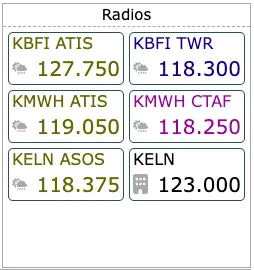
Frequencies from Route
Frequencies from Route
Automatically populating your Radio Tile with frequencies from your flight plan saves time. This guide walks you through the process in four simple steps.
Step 1: Route Selection
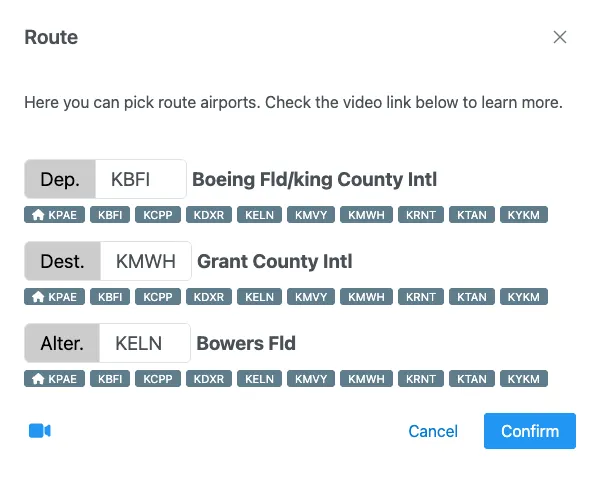
Before you can pull frequencies from your route, you must have a route defined. Ensure you have selected your departure and destination airports in the Route settings.
Step 2: Enable Route Mode
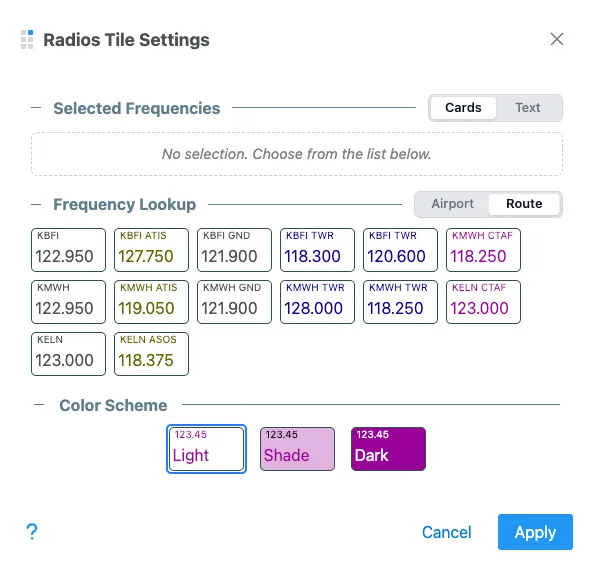
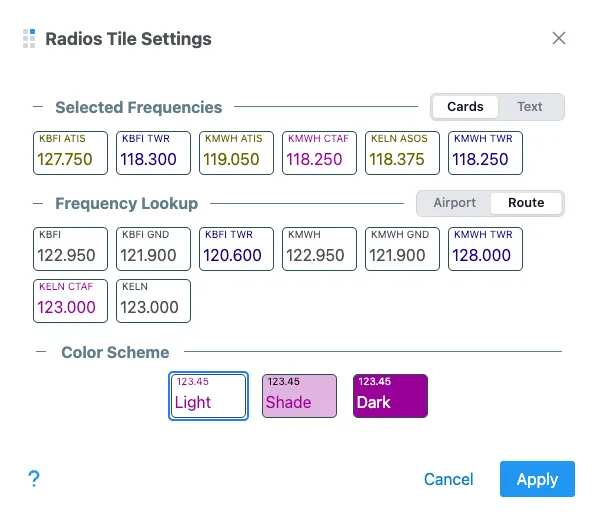
Open the settings for your Radio Tile. In the display mode section, select the Route frequency lookup mode. This instructs the tile to scan your active flight plan for relevant communication and weather frequencies.
Step 3: Select Frequencies of Interest
With the Route mode active, you will see a list of available frequencies for your departure, destination, and any alternates in the bottom section of the tile. Simply click on the frequencies you want to track to add them to your active list at the top.
Step 4: Voila!
Your Radio Tile is now populated with the specific frequencies you need for your trip, organized and ready for use.