Clearer Cockpits: Customizing the ICAO Code Display on Your Airport Tiles
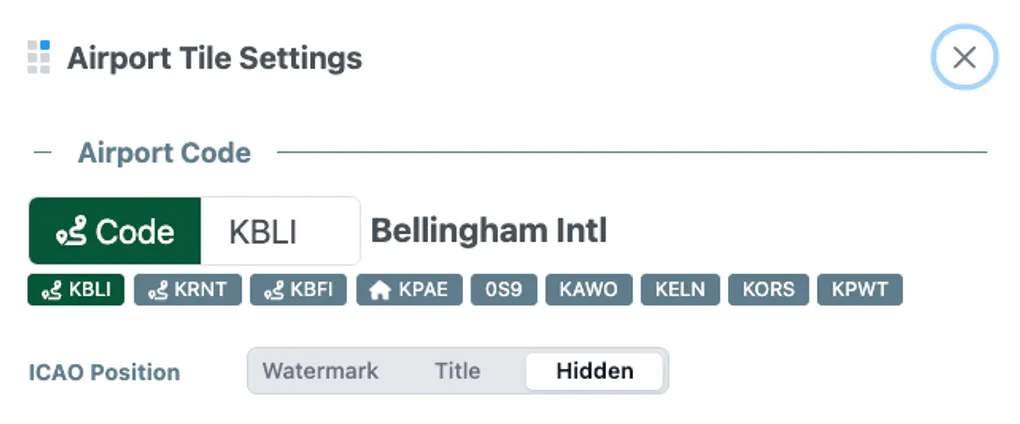
In the cockpit, clarity is essential. Every pixel on your kneeboard counts, and pilots have different preferences for how they view information. In our latest update (v6.25.1), we’ve introduced a new layout customization option for Airport Tiles: ICAO Position.
This setting allows you to choose how—and whether—the ICAO airport identifier is displayed within the tile.
Three Customization Options
Previously, the ICAO code was always displayed as a large background watermark in Runway Sketch mode. We have expanded this capability and added three display options under the Airport Code settings:
| Option | Function | Use Case |
|---|---|---|
| Watermark (Default) | Renders the ICAO code as a subtle background watermark. This now applies to both Runway Sketch and Mini Diagram modes. | Quick visual recognition without header clutter. |
| Title | Replaces the airport name in the header with the ICAO code (e.g., “KPAE” instead of “Paine Field”) and hides the background watermark. | Minimizing visual noise to keep tile contents clean. |
| Hidden | Displays the airport name in the header and hides the background watermark. | Clean layout view for sketches and diagrams. |
How to Configure
- Tap the Settings (gear icon) on the top-left of any Airport Tile.
- Under the Airport Code section, locate the ICAO Position setting.
- Select your preferred display mode: Watermark, Title, or Hidden.
The tile updates immediately and saves to your dashboard configuration.
UI Tweaks & Polish
This update also includes styling refinements:
- Uniform Watermarks: Watermark sizing is now consistent across both Runway Sketch and Mini Diagram modes, resolving an issue where the watermark could appear oversized in the diagram view.
- Layout Grid Alignment: The setting is aligned within the existing Airport Input grid for a structured layout.
Update your kneeboard app to version 6.25.1 to use these new options.
Safe flying!
