Radio Tile Settings: A Complete Overhaul 📻
The Radio Tile is your personalized communication hub on the kneeboard, keeping critical frequencies right at your fingertips. We’re excited to announce that the Settings menu for the Radio Tile has been completely redesigned to make building your custom frequency list faster and more intuitive.
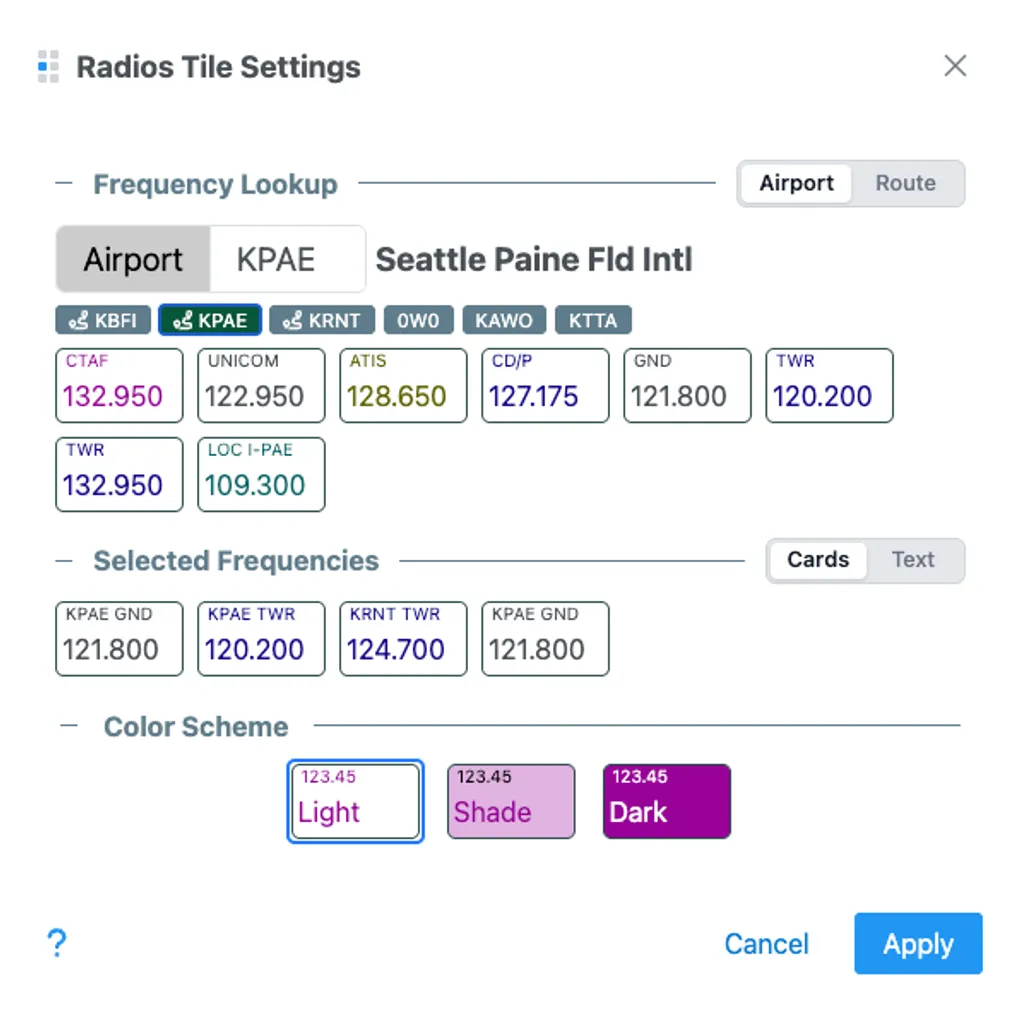
When you open the new Radio Tile Settings, you will see three main sections: Frequency Lookup, Selected Frequencies, and Color Scheme.
🔍 Frequency Lookup (Finding Frequencies)
The Lookup section acts as a search engine for adding new frequencies to your custom list. It features two discovery modes:
- Airport Mode: Type an airport identifier (e.g., KJFK) into the large input field. It automatically suggests your Home airport, recently used airports, and airports currently configured in your route. Once selected, all frequencies for that airport immediately appear below as interactive cards.
- Route Mode: Simply toggle to “Route”, and the system instantly pulls every frequency associated with your active flight plan.
How to Add: When results appear in the lookup area, hover over any frequency card and click the blue + icon in the top right corner to instantly add it to your custom “Selected Frequencies” list.
📋 Selected Frequencies (Managing Your List)
This section shows the custom list of frequencies that will be displayed when the tile is in “Selected Frequencies” mode. You can manage this list using two different interfaces:
- Cards Mode (Visual Grid): Displays your customized list as clear frequency boxes. Hover over any card in your list to reveal a red
-icon to remove it. - Text Mode (Power User): Displays your list in raw text format (e.g.,
123.45, KABC Twr, Tower). This mode is perfect for rapid bulk editing or pasting lists built in Excel or Notepad. Any changes made here instantly sync back to Cards Mode.
🎨 Color Scheme
At the bottom of the settings dialogue, you can customize the aesthetic of the frequency boxes shown on the tile:
- Light: High contrast with a white background.
- Shade: A slightly darker aesthetic that reduces glare.
- Dark: Deep backgrounds for low-light or night flying situations.
Select the one that best matches your kneeboard theme or current lighting environment.
Quick Workflow Example
Imagine you are flying a new cross-country route and want to prepare your Radio Tile:
- Open Radio Tile Settings.
- Go to Frequency Lookup and switch the toggle to Route.
- All frequencies for your planned flight appear.
- Hover over the specific Tower, Approach, and ATIS frequencies you know you’ll need, clicking the blue
+to add them selectively. - Scroll down to Selected Frequencies to verify your list. If you accidentally added a Ground frequency you don’t need, hover over it and click the red
-to remove it. - Hit Apply.
Your personalized, clutter-free radio list is now ready on your kneeboard!